Create a Strava flyover from a saved activity or GPS file
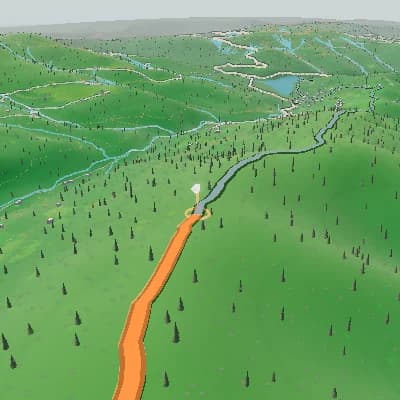
Select a saved activity after signing in, or upload its FIT, GPX, or TCX file. Flyover creates a new editable 3D route video that you can compose with photos, camera controls, and scene keyframes before exporting an MP4.
Use activity photos as route moments
Add your own photos at the matching points in the saved activity or uploaded route, so the flyover connects each moment to its place on the map.
A finished scene sequence from one route
For activity recaps and route previews, Auto Story uses route shape, climbs, descents, and supported activity moments to produce an ordered sequence you can review scene by scene and edit in the same Studio.
Export the finished flyover as MP4
Choose the aspect ratio, frame rate, and available resolution, then export a new MP4 from the route video you edited.

Use activity photos as route moments
Add your own photos at the matching points in the saved activity or uploaded route, so the flyover connects each moment to its place on the map.
A saved-activity and upload workflow
- Select a saved activity after signing in, or upload a FIT, GPX, or TCX file.
- Add photo stops and edit the route camera, scene appearance, and panels.
- Create a new 3D route video from the activity data.
- Export the finished flyover as an MP4.
Make a Strava flyover-style MP4
- 1Sign in to select a saved activity, or upload its GPS file.
- 2Edit the route presentation with photos, camera controls, and scene keyframes.
- 3Choose export settings and create a new MP4.
FAQ
Can I paste a Strava activity URL?
No. Select a saved activity after signing in or upload a FIT, GPX, or TCX file with a usable GPS track.
Does Flyover connect to the Strava API?
No. This workflow uses the saved activities available in TrainCraft or a file you upload.
Can I download a video from Strava?
No. Flyover creates and exports a new MP4 route video from the activity data you provide.