Make a 3D flyover from your Karoo ride
Your Hammerhead Karoo already recorded the ride as a FIT file. Download it, upload it to TrainCraft Flyover and get a 3D terrain video of the route, with photos, camera moves and elevation panels. No account connection is needed, just the file.
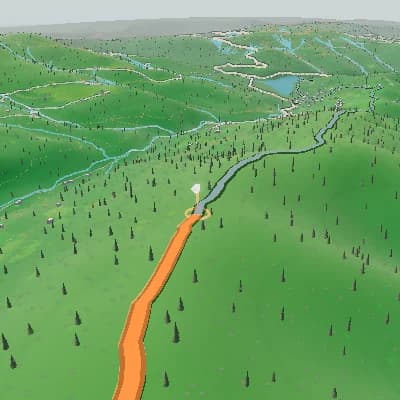
What a Karoo FIT file can show
The GPS track draws the route over 3D terrain, with progress and elevation. Heart rate, power or cadence panels use sensor values only if your ride file contains them.
A finished scene sequence from one route
For activity recaps and route previews, Auto Story uses route shape, climbs, descents, and supported activity moments to produce an ordered sequence you can review scene by scene and edit in the same Studio.
In the Hammerhead Dashboard, open Rides, click the "..." next to the ride, choose Download FIT and save the file.
The GPS track draws the route over 3D terrain, with progress and elevation. Heart rate, power or cadence panels use sensor values only if your ride file contains them.
Free export is 720p with stylized terrain and a TrainCraft watermark. Paid export unlocks 1080p and 1440p, satellite imagery and no watermark. Choose 16:9, 9:16, 1:1 or 4:5.

Add photos from the ride
Place photos at the climb, viewpoint or finish on the timeline. They appear during the flyover with the terrain still in view.
Export your Karoo ride as MP4
Free export is 720p with stylized terrain and a TrainCraft watermark. Paid export unlocks 1080p and 1440p, satellite imagery and no watermark. Choose 16:9, 9:16, 1:1 or 4:5.
Open Flyover StudioFrom Karoo file to video
- Upload FIT, GPX or TCX files with a GPS track.
- Use the FIT file straight from your Hammerhead Karoo ride.
- Add photo stops, camera and scene keyframes.
- Show route and elevation panels, plus sensor data present in the file.
- Export MP4: free 720p, paid 1080p/1440p.
Which Karoo computers work
Any ride file with a GPS track works, whatever the device that recorded it. These Karoo models are the ones the official support pages cover:
- Hammerhead Karoo (released May 2024)
- Hammerhead Karoo 2
- Hammerhead Karoo (1st generation)
Official instructions
- Hammerhead support: downloading a FIT file from the Dashboard
- Hammerhead support: downloading a FIT file from Karoo to a PC
- Hammerhead support: Karoo upgrade program
Karoo is a trademark of its owner. TrainCraft is independent and is not affiliated with or endorsed by Hammerhead.
Karoo ride to 3D flyover in four steps
- 1In the Hammerhead Dashboard, open Rides, click the "..." next to the ride, choose Download FIT and save the file.
- 2Upload the FIT file to TrainCraft Flyover.
- 3Add photos, pick the camera and terrain, and set the panels.
- 4Choose the aspect ratio and export an MP4. Free export is 720p with a watermark.
FAQ
Can I make a 3D flyover from my Karoo ride?
Yes. Download the ride as a FIT file from the Hammerhead Dashboard, upload it to TrainCraft Flyover and edit the 3D route video.
Where do I find the FIT file for a Karoo ride?
Hammerhead says you can download any completed ride from the Hammerhead Dashboard: Rides, the "..." menu, Download FIT. For Karoo and Karoo 2 there is also a USB option: connect the head unit, choose MTP and open the FitFiles folder in Internal Storage.
Is it free?
Yes, with limits: free export is 720p, stylized terrain and a TrainCraft watermark. Paid export unlocks 1080p/1440p, satellite imagery and no watermark.
Does it work with indoor rides?
Only if the file has a GPS track. Indoor data without coordinates cannot draw a route.
Do I need to connect my Karoo account?
No. There is no Karoo connection. You download the file yourself and upload it. TrainCraft is not affiliated with Hammerhead.